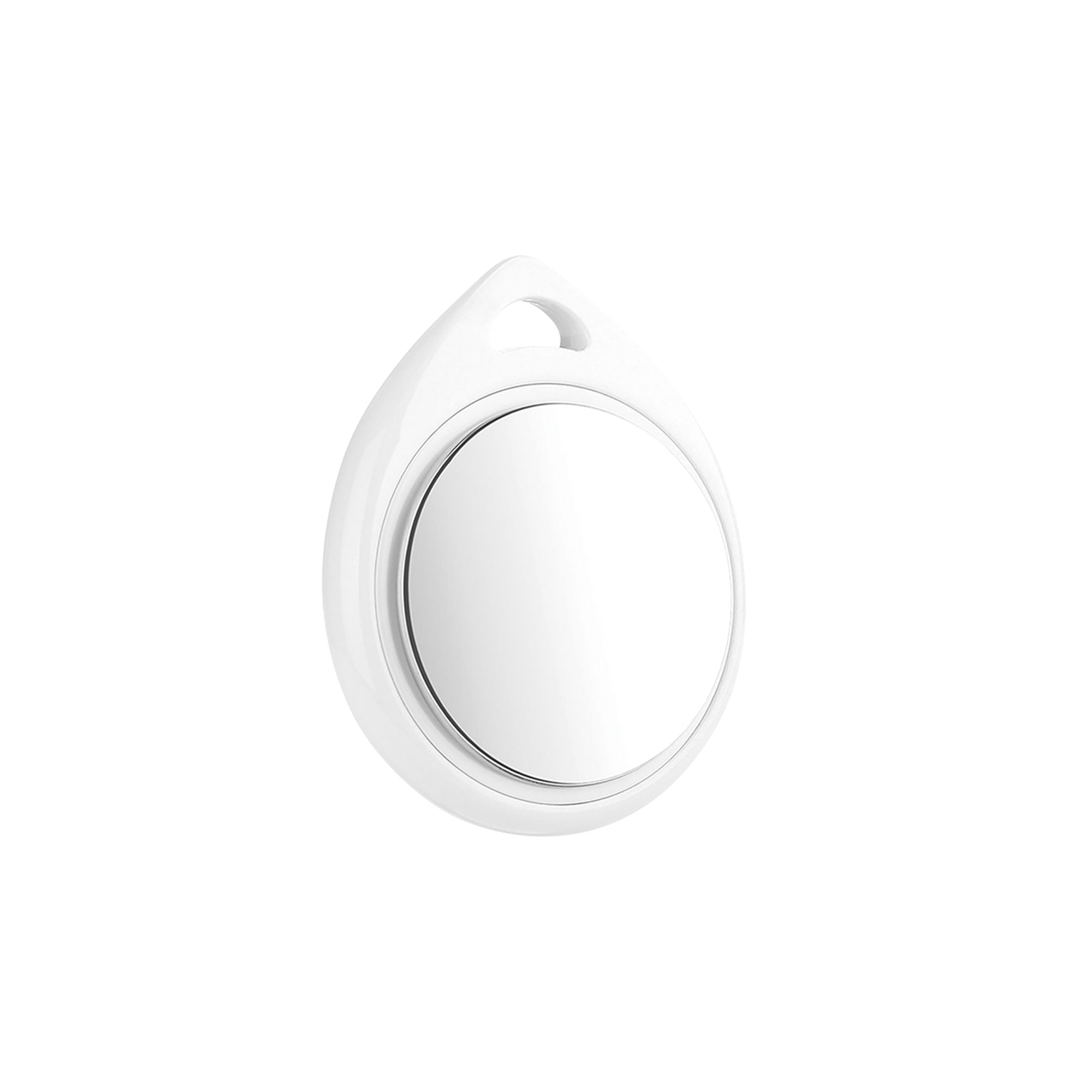
Artikelnummer: ITAG
| General | |
|---|---|
| Product Type | Smart tag / item finder |
| Platform | Apple Find My app |
| Supported Operating Systems | iOS / iPadOS / macOS (latest version recommended) |
| Supported Devices | Supported iPhone / iPad |
| Setup and Operation | |
| Power On | Press the function button once; the device emits a single beep when powered on |
| Power Off | Press and hold the same button for at least 3 seconds; two beeps indicate that the item finder has been turned off |
| Pairing | Open the Items tab in the Find My app and tap the item finder in the list to connect |
| Factory Reset | After removing the item finder from the Find My app, quickly press the function button repeatedly (a beep with each press); on the fifth press, hold until a chime is heard |
| Functions | |
| Location Display | The last known location is shown on the map with the emoji selected during setup; tap Directions to open the Maps app for navigation |
| Notify When Left Behind | Supported; a notification is sent when the item finder is left behind and is no longer within range of your device |
| Notify When Found | Supported; when the item finder is detected by another Find My-enabled device, its updated location is reported. Can be enabled only while the item finder is out of range |
| Lost Mode | Supported; a phone number or email address and a message for the finder can be entered. When activated, Notify When Found is enabled automatically, and the item finder is locked and cannot be paired with a new device |
| Unwanted Tracking Detection | Supported; if an unknown item finder is detected traveling with you, your phone sends a notification and the device plays a sound. Alerts activate only when the item finder is not paired with its owner's phone |
| Audible Alert | Yes (beep and chime) |
| Power | |
| Battery | CR2032 (user replaceable) |
| Battery Orientation | Inserted with the plus (+) side and the text facing up |
| Casing Access | Opened carefully with fingernails through the small gap on the side; align the top holes on both sides when closing |
| Compliance | |
| FCC | Complies with Part 15 of the FCC Rules; meets the limits for a Class B digital device |
| RF Exposure | Evaluated to meet general RF exposure requirements; suitable for portable exposure use without restriction |